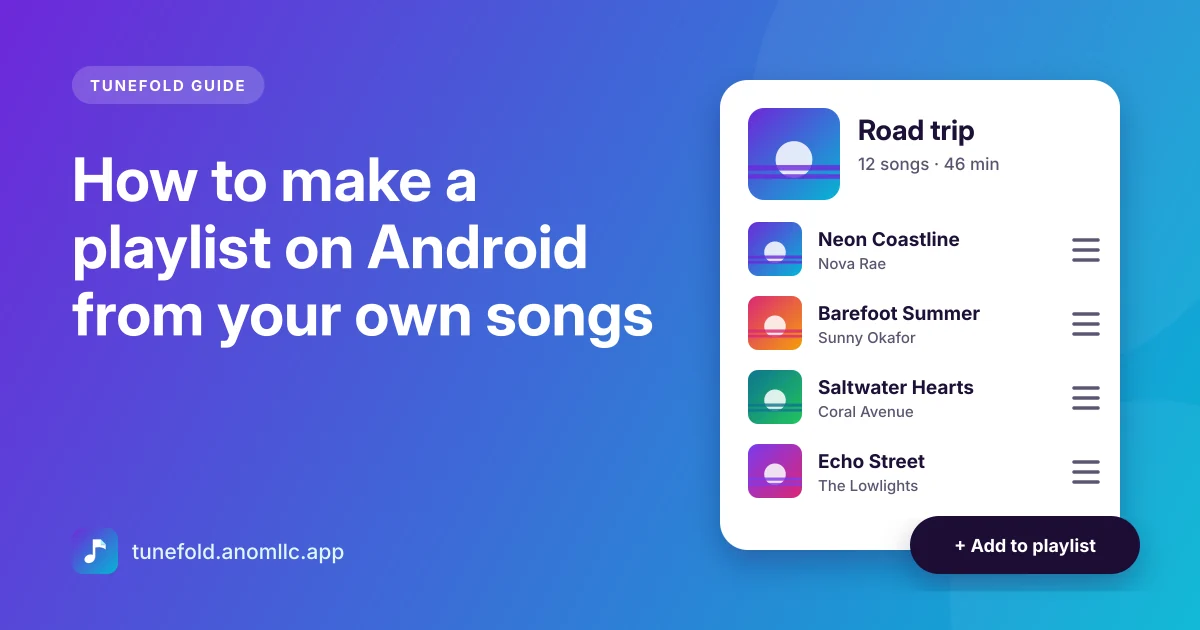
To make a playlist on Android from your own songs, open a music player that reads the files on your phone, tap the menu next to a song, choose Add to playlist, then New playlist. Add more songs the same way, and reorder them inside the playlist. Here is how it works in Tunefold, plus the quicker tools for one-off listening: the queue, favourites and smart lists.
Create a playlist in Tunefold
- Open Tunefold and find a song you want in the playlist, in Songs, Albums, Artists, Folders or Search.
- Tap ⋮ next to the song, then Add to playlist.
- Tap New playlist, type a name, for example Road trip, and tap Create. The song is added straight away.
- Add more songs. Tap ⋮ next to the next song, Add to playlist, and pick Road trip. A song that's already in the playlist isn't added twice.
You can also start empty: open the Playlists tab, tap New playlist, name it, and fill it later.
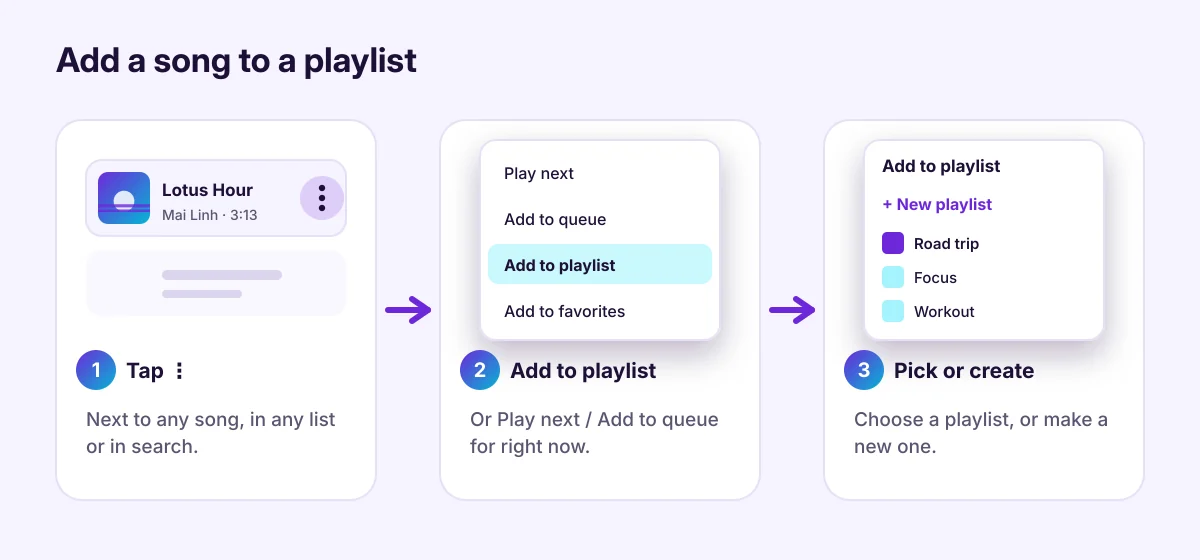
Add a whole album, artist or folder
Open the album, artist or folder, tap ⋮ at the top of the page and choose Add to playlist. Every song on that page goes into the playlist, in order. The same menu has Play next and Add to queue, which put all of those songs into what's playing now.
Edit a playlist
Open the playlist from the Playlists tab:
- Reorder songs: tap ⋮ next to a song and choose Move up or Move down.
- Remove a song: tap ⋮, then Remove from playlist. The song stays on your phone.
- Rename or delete the playlist: use the ⋮ menu at the top of the playlist. Deleting a playlist never deletes your music.
- Play it: tap Play to start from the top, or Shuffle.
Smart lists that build themselves
Tunefold keeps four lists for you in the Playlists tab:
- Favorites: every song you've marked with the heart, in the player or the song menu.
- Recently added: the newest music on your phone, handy right after copying an album.
- Recently played: what you've listened to lately, newest first.
- Most played: your real top tracks, counted on your phone. A song counts as played after about 10 seconds of listening.
Recently played and Most played stay on your phone. You can reset them in Settings > Clear listening history.
The queue: a playlist for right now
Sometimes you don't need a saved playlist, just "play these next":
- Play next puts a song right after the one playing, even in shuffle.
- Add to queue puts it at the end.
- Open the full player and tap Queue to see what's coming up, jump to any song, move songs up or down, or remove them.
Tunefold remembers the queue, so after a restart it picks up where you left off.
Shuffle without repeats
Tunefold's shuffle plays the song you tapped first, then every other song once, in random order. Songs you add with Play next still come right after the current song, and Add to queue songs still come last. Turn on Repeat all to start a new shuffle round when the list ends.
Playlist ideas
- Commute: 30 to 45 minutes of songs you never skip.
- Workout: fast songs first, a slower cool-down at the end.
- Focus: instrumental albums, so lyrics don't pull your attention.
- Sleep: calm tracks, with the sleep timer set to stop the music.
- Travel: a long mix for flights and places with no signal. See offline music on Android.
Common questions
Do playlists need internet? No. They point to the music files on your phone and work offline.
Will my playlists move to a new phone? No. Playlists refer to the songs on this phone, and the same songs get different internal numbers on another phone. Copy your music to the new phone and make the playlists again there.
Why is a song missing from my playlist? If a file was deleted, moved or hidden, it drops out of the playlist. Add it again once the file is back on your phone.
Can I import playlist files (M3U)? Not at the moment. Tunefold's playlists are made in the app.